
Federal payments (IRS Direct Pay)
Free, secure payments straight from your checking or savings account. No IRS login needed.
Balance due on a filed returnForm 1040, tax you owe with your return
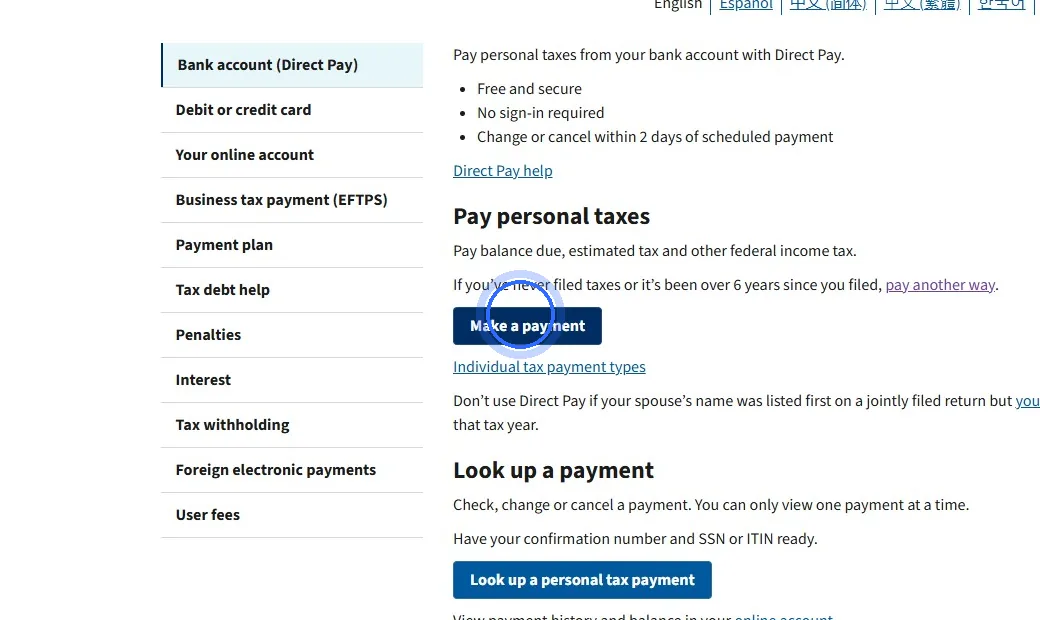
- Go to IRS Direct Pay and click Make a Payment.
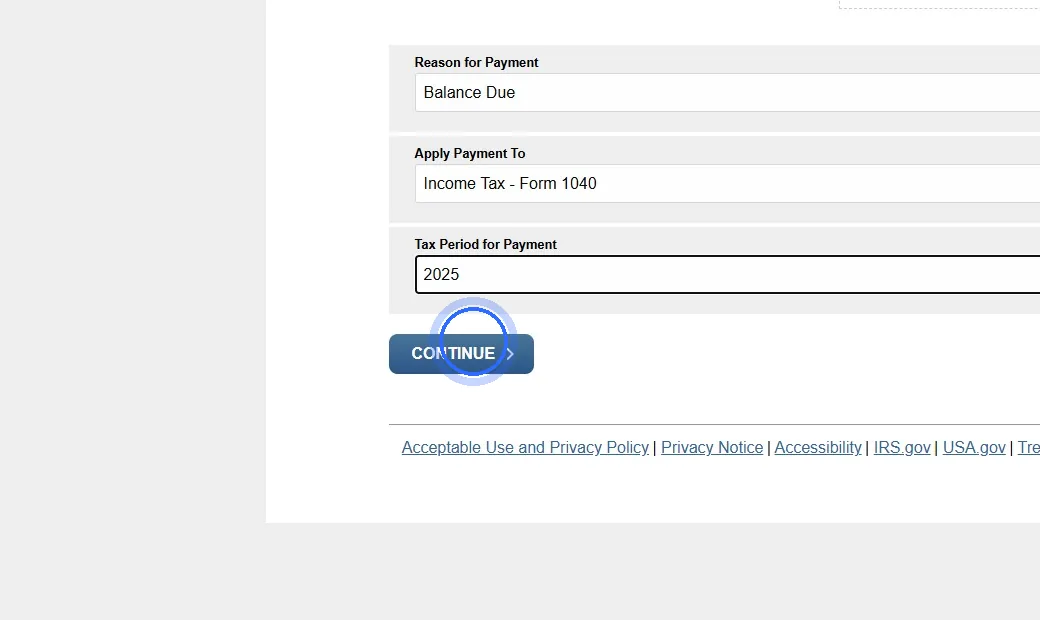
- Under Reason for Payment choose Balance Due, Apply Payment To Income Tax – Form 1040, and Tax Period the year of the return.
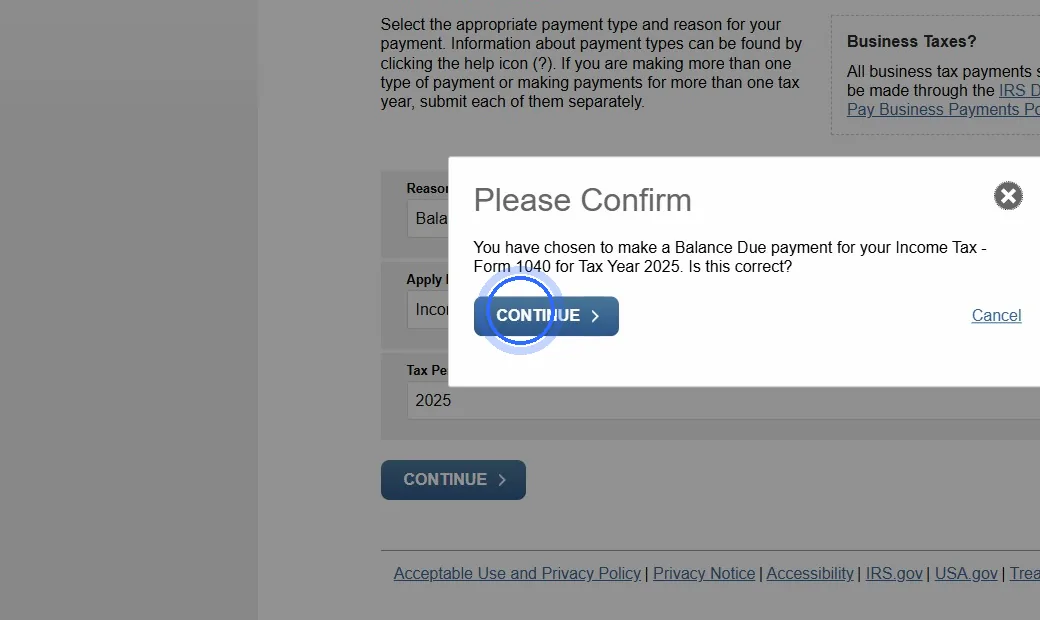
- Click Continue, then Continue again on the pop-up that confirms your choices.
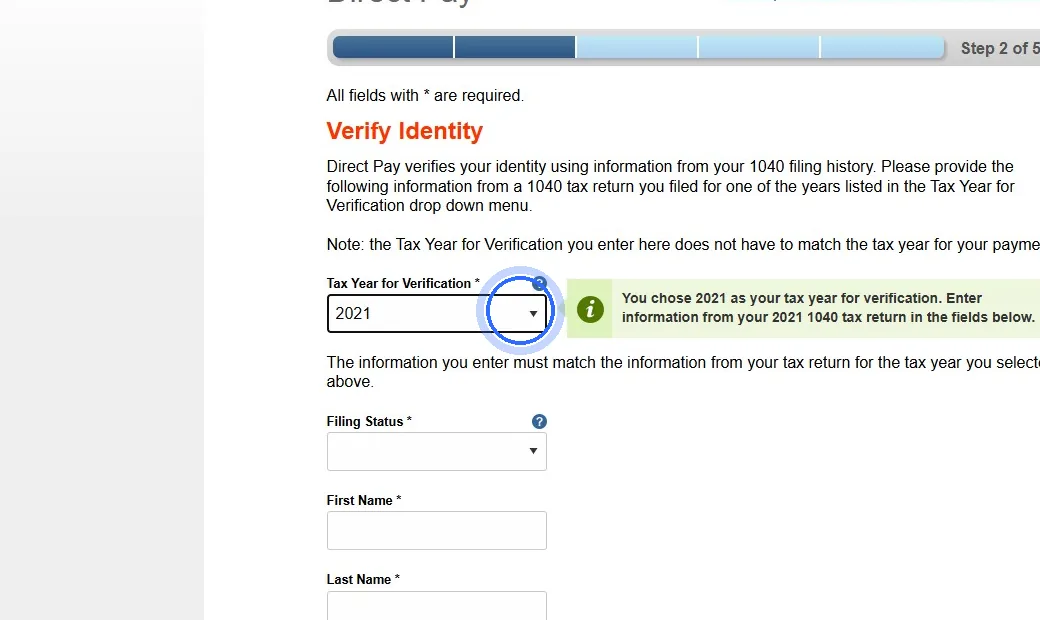
- Verify your identity: choose a Tax Year for Verification (a year you have already filed) and enter your information exactly as it appears on that return. If you file jointly, use the person listed first. Complete every field, including the drop-downs.
- Check I accept the Privacy Act and Paperwork Reduction Act and click Continue.
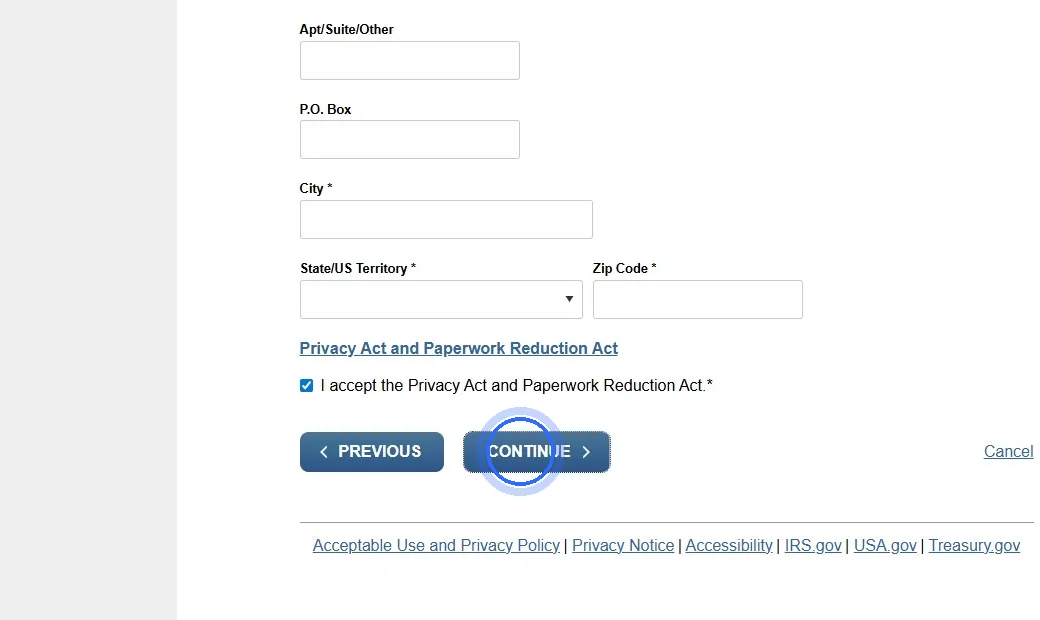
- Enter the Payment Amount twice and choose the payment date.
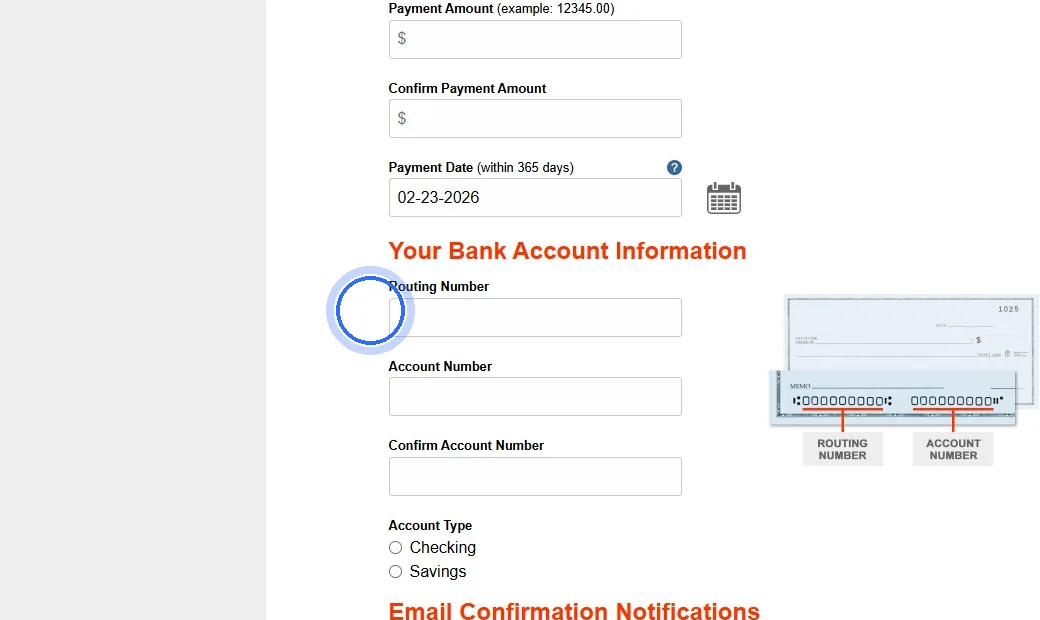
- Enter your bank's routing number, your account number (twice), and the account type.
- Check the box for email confirmation and enter your email address twice.
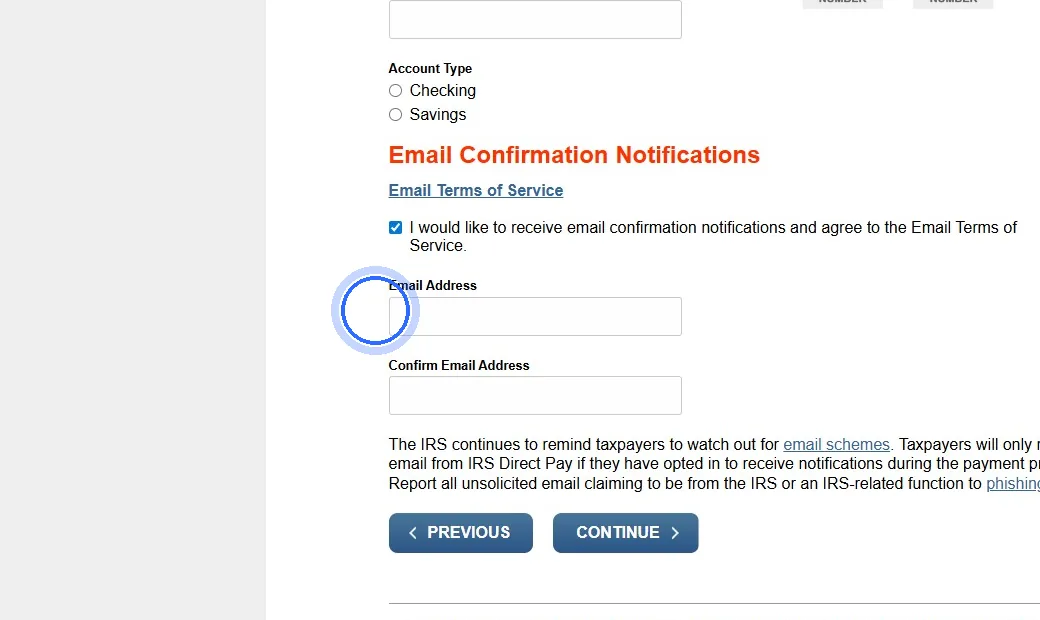
- Click Continue, review, click I Agree, sign with your name and SSN, check I accept the Debit Authorization Agreement, and click Submit.
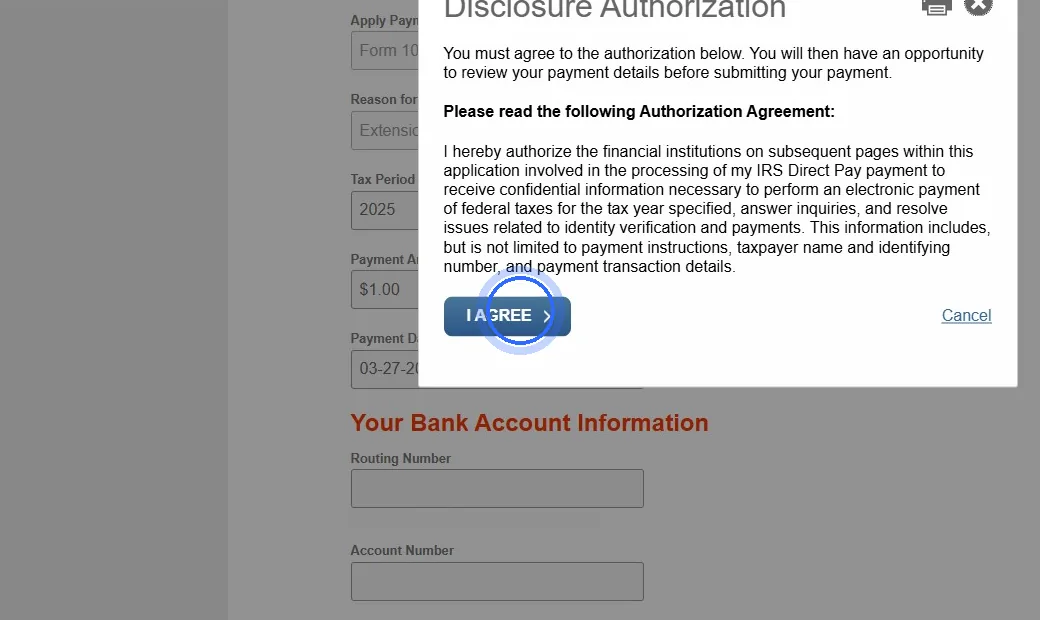
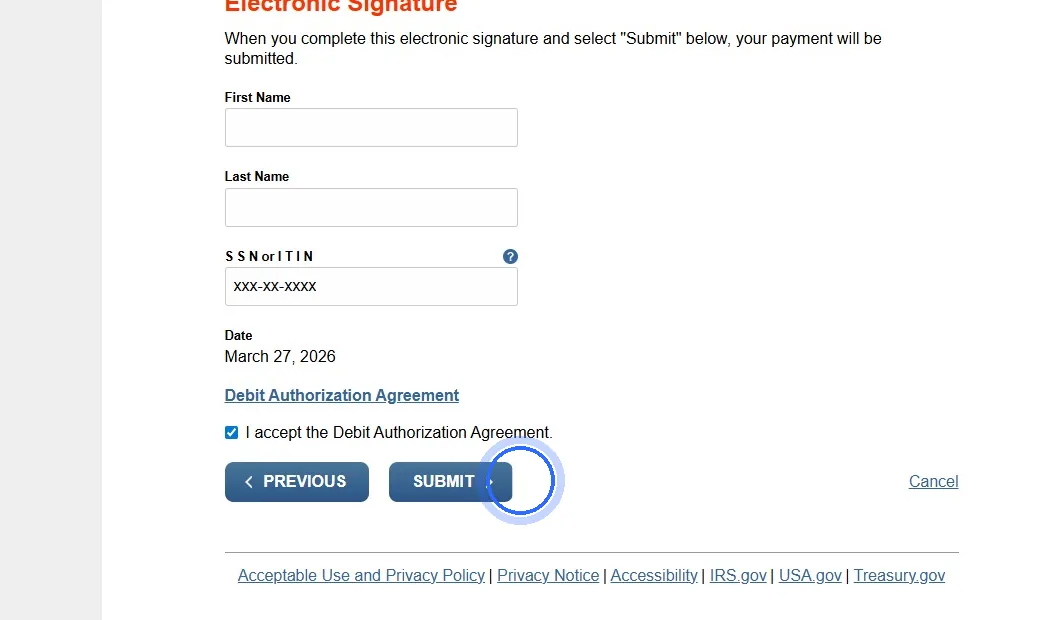
- Save your confirmation number and send it to us (a screenshot is fine).
Quarterly estimated tax paymentForm 1040-ES, due April 15, June 15, September 15, January 15
- Go to IRS Direct Pay and click Make a Payment.
- Under Reason for Payment choose Estimated Tax, Apply Payment To 1040ES, and Tax Period the year the estimate is for. The January 15 payment is the last installment for the year before (a January 2027 payment is for 2026).
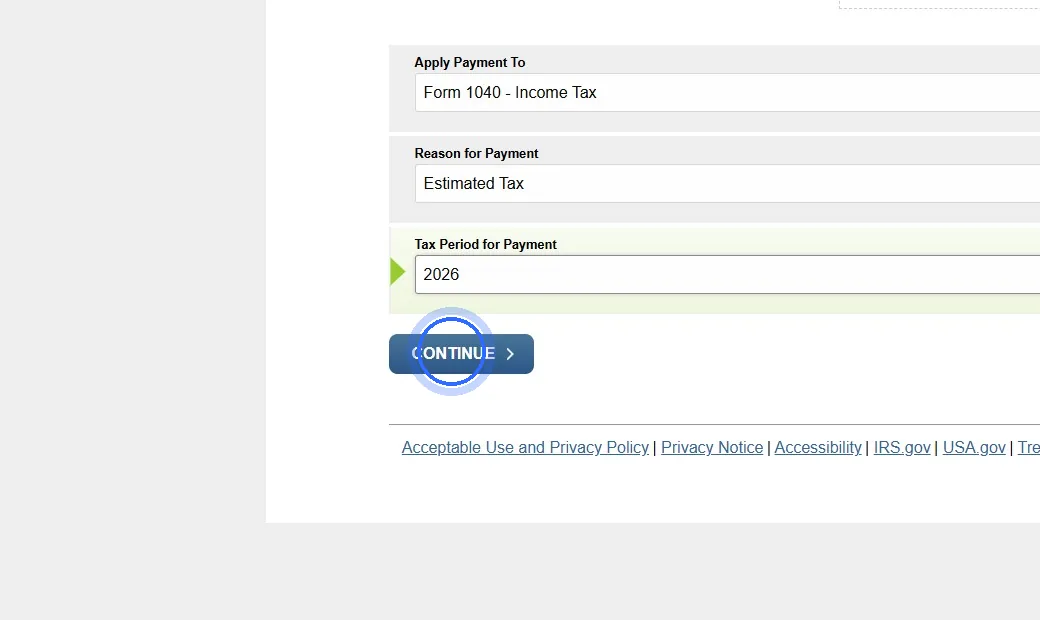
- Click Continue, then Continue again on the pop-up that confirms your choices.
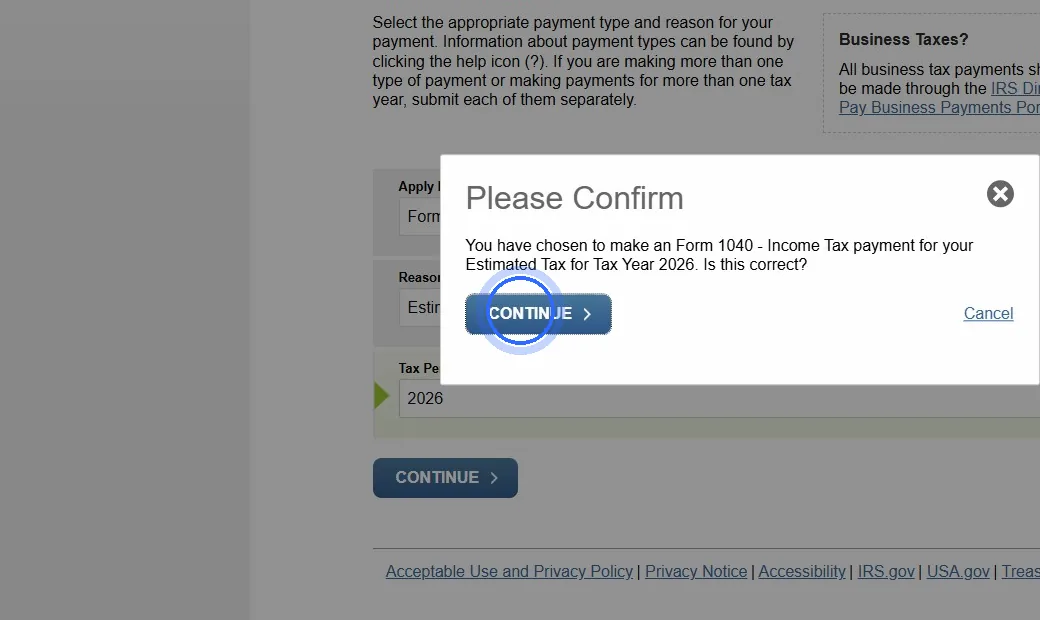
- Verify your identity: choose a Tax Year for Verification (a year you have already filed) and enter your information exactly as it appears on that return. If you file jointly, use the person listed first. Complete every field, including the drop-downs.
- Check I accept the Privacy Act and Paperwork Reduction Act and click Continue.
- Enter the Payment Amount twice and choose the payment date.
- Enter your bank's routing number, your account number (twice), and the account type.
- Check the box for email confirmation and enter your email address twice.
- Click Continue, review, click I Agree, sign with your name and SSN, check I accept the Debit Authorization Agreement, and click Submit.
- Save your confirmation number and send it to us (a screenshot is fine).
Extension paymentPaying by the April deadline when you're extending the return
- Go to IRS Direct Pay and click Make a Payment.
- Under Reason for Payment choose Extension, Apply Payment To 4868, and Tax Period the year being extended.
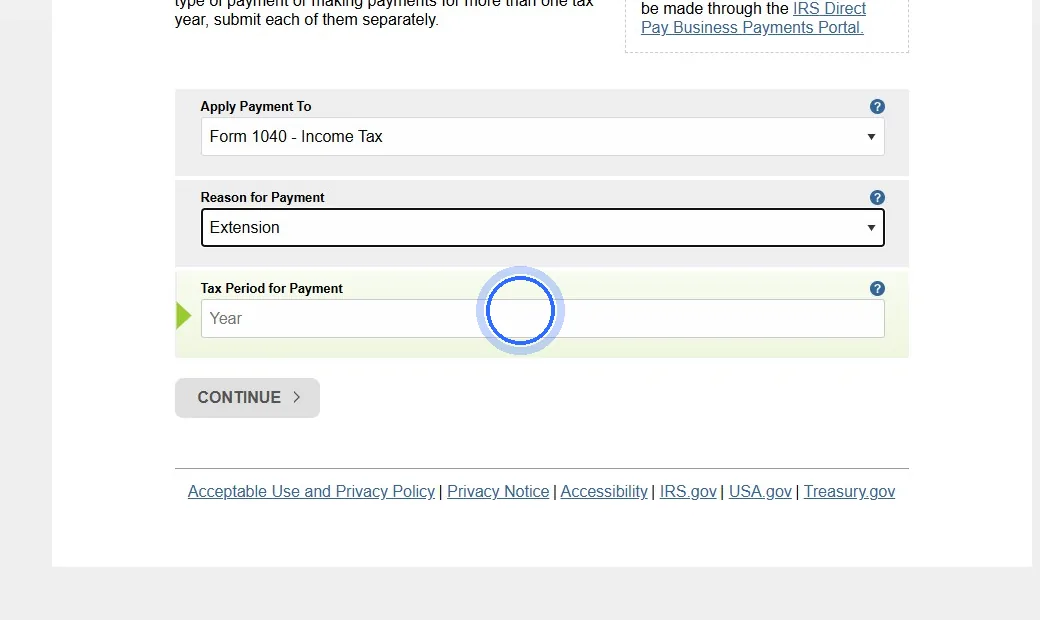
- Click Continue, then Continue again on the pop-up that confirms your choices.
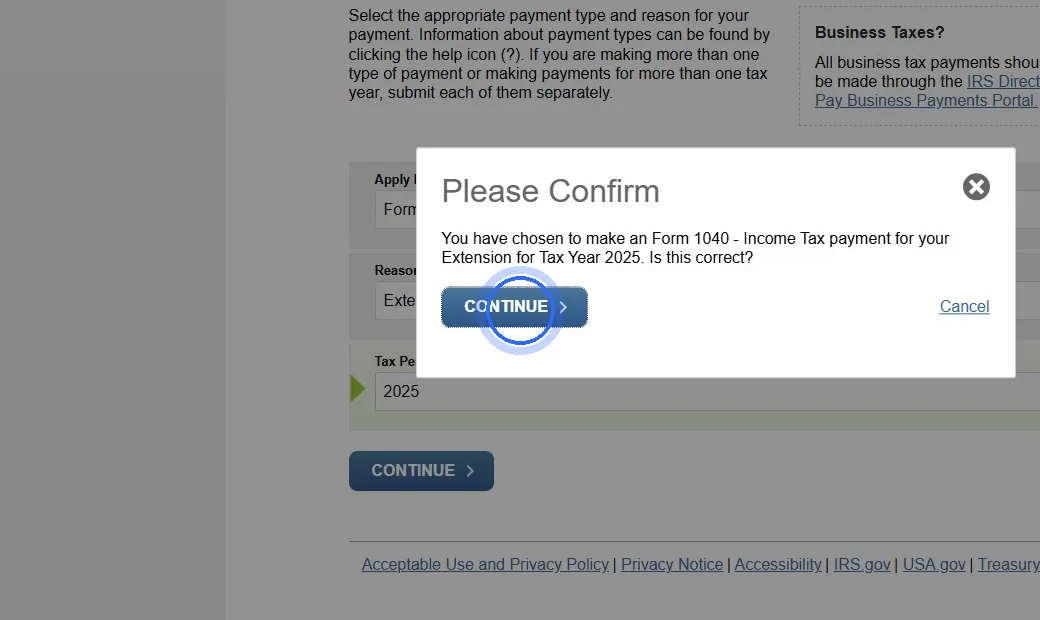
- Verify your identity: choose a Tax Year for Verification (a year you have already filed) and enter your information exactly as it appears on that return. If you file jointly, use the person listed first. Complete every field, including the drop-downs.
- Check I accept the Privacy Act and Paperwork Reduction Act and click Continue.
- Enter the Payment Amount twice and choose the payment date.
- Enter your bank's routing number, your account number (twice), and the account type.
- Check the box for email confirmation and enter your email address twice.
- Click Continue, review, click I Agree, sign with your name and SSN, check I accept the Debit Authorization Agreement, and click Submit.
- Save your confirmation number and send it to us (a screenshot is fine).
An extension gives you more time to file, not more time to pay. Tax is still due by the April deadline.
Business paying federal tax? Federal business taxes are paid through EFTPS; we'll send you instructions for your business.
Oklahoma individual payments (OkTAP)
Pay the Oklahoma Tax Commission online. No OkTAP account or login needed.
Balance due on a filed returnOklahoma Form 511, tax you owe with your return
- Go to OkTAP (Oklahoma Taxpayer Access Point). You do not need to log in.
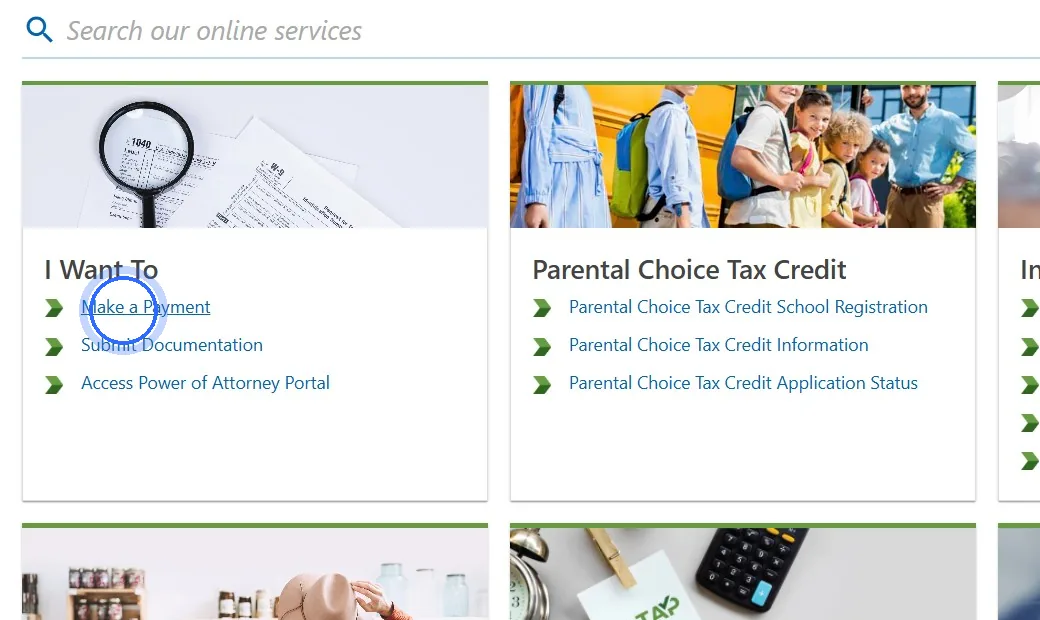
- Under I Want To, click Make a Payment. If a second screen appears, click Make a Payment again.
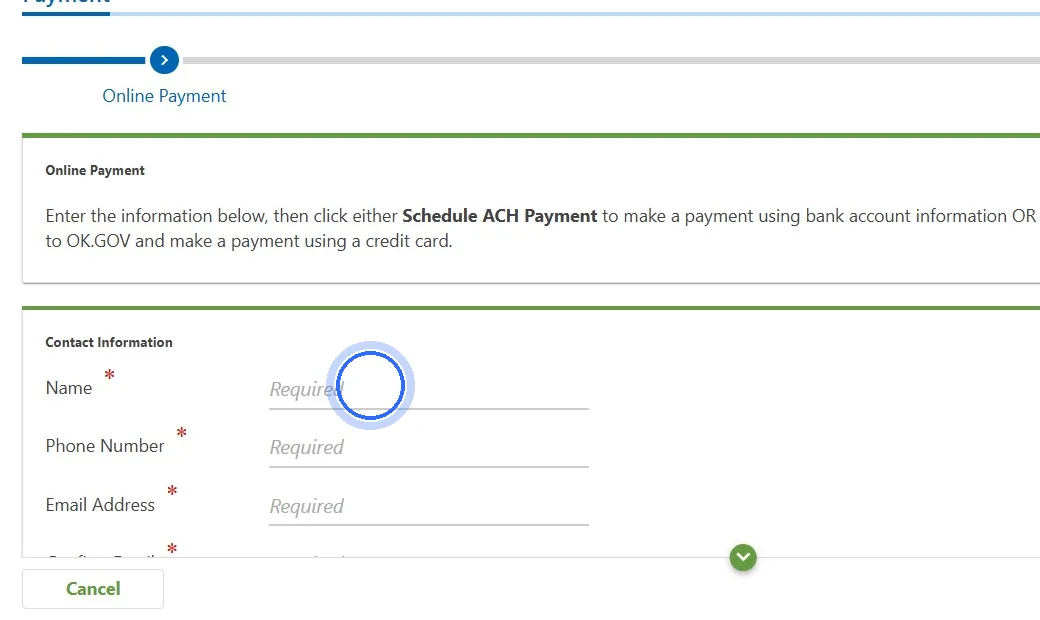
- Enter your name, phone number, and email address.
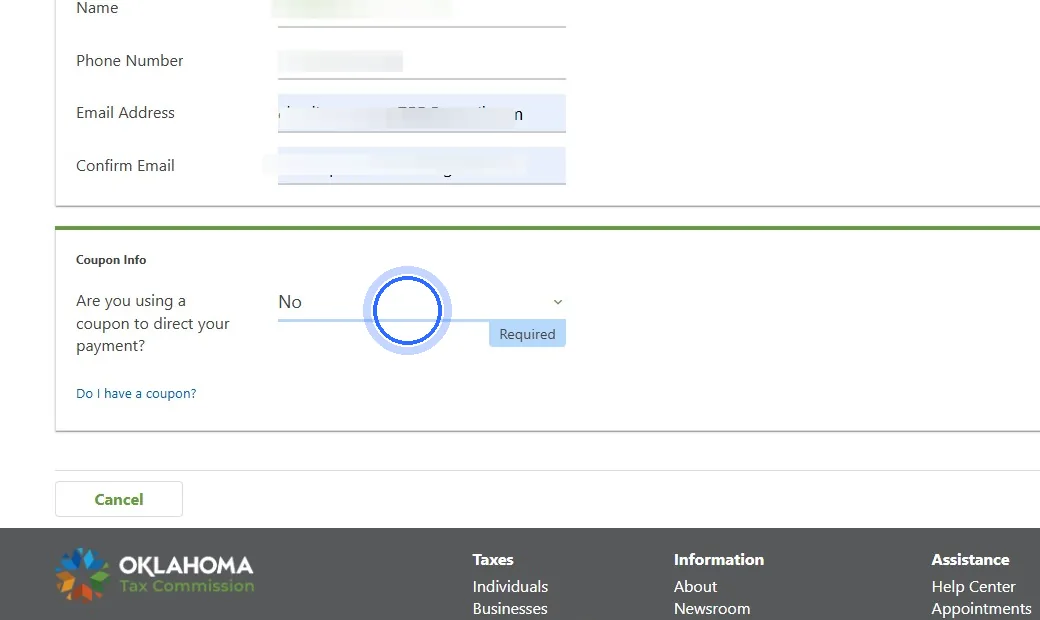
- When asked if you are using a coupon, select No, then click Next.
- Account Type: 03. Individual Income Tax. ID Type: Social Security Number, and enter the SSN of the person listed first on your return.
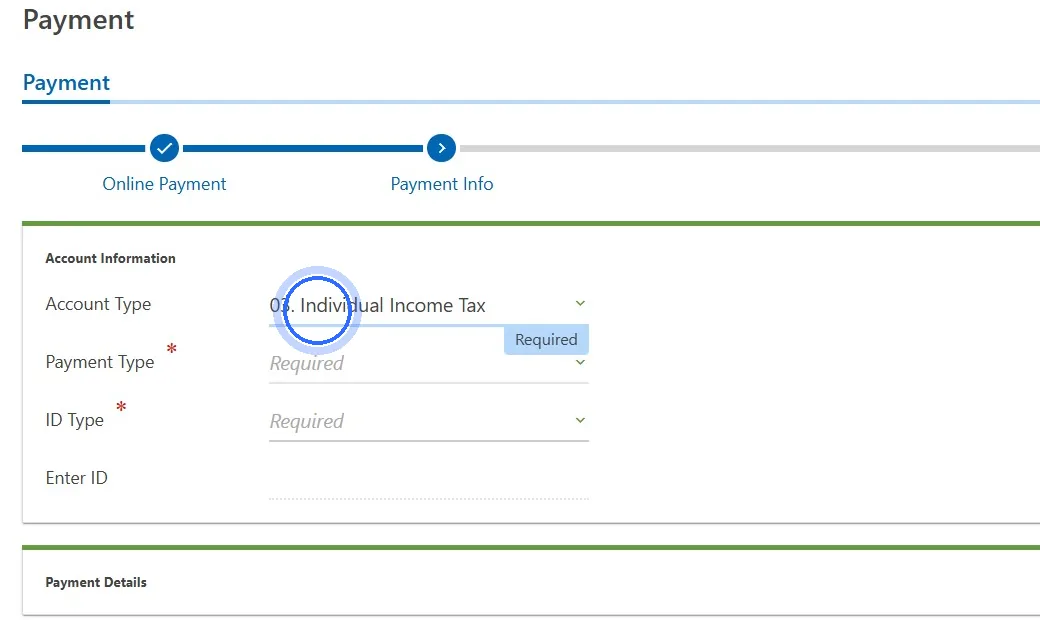
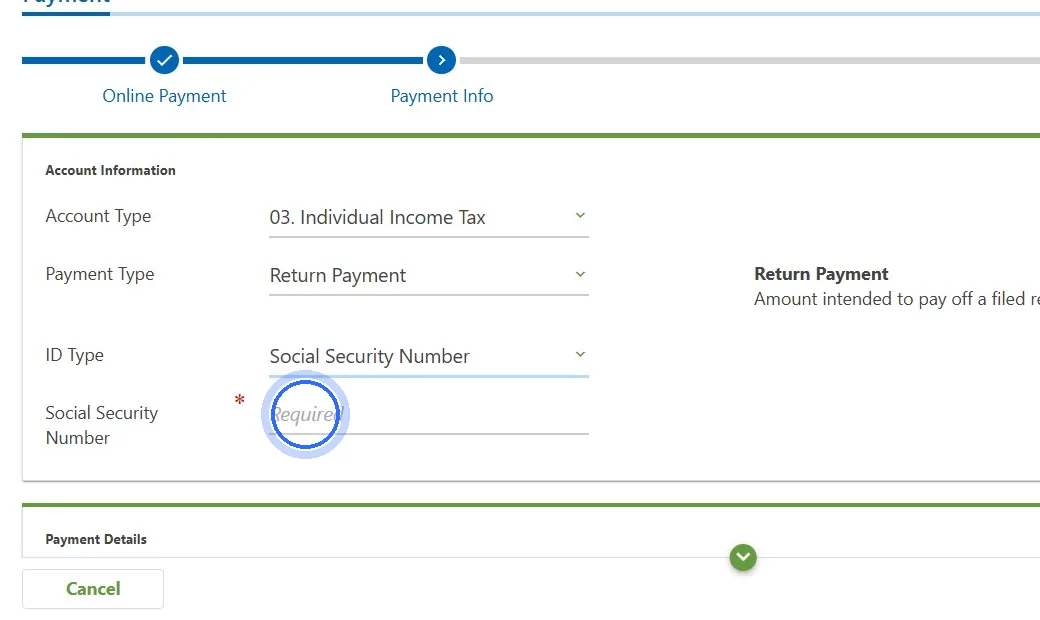
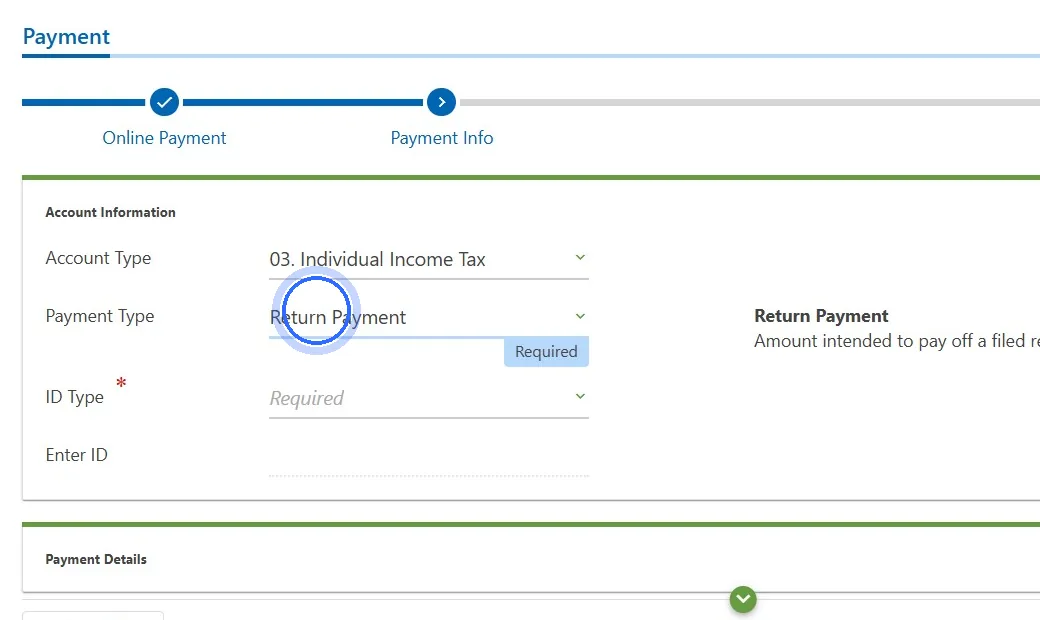
- Payment Type: Return Payment.
- Tax Year: enter the year of the return. Click Next.
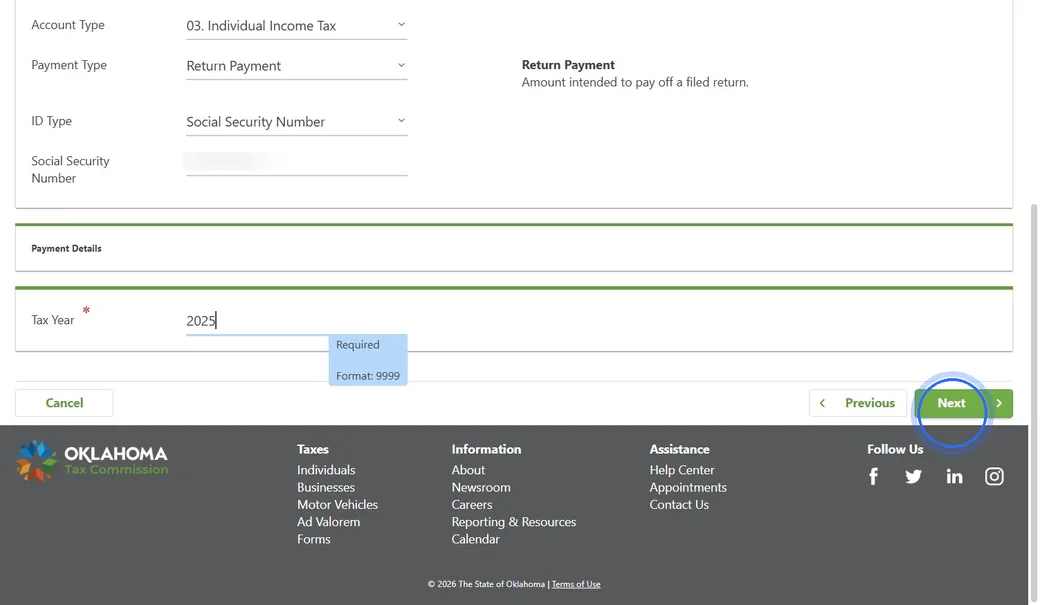
- Enter the Payment Amount.
- Choose Schedule ACH Payment (from your bank account) or Schedule Credit Card Payment (the card processor charges a fee).
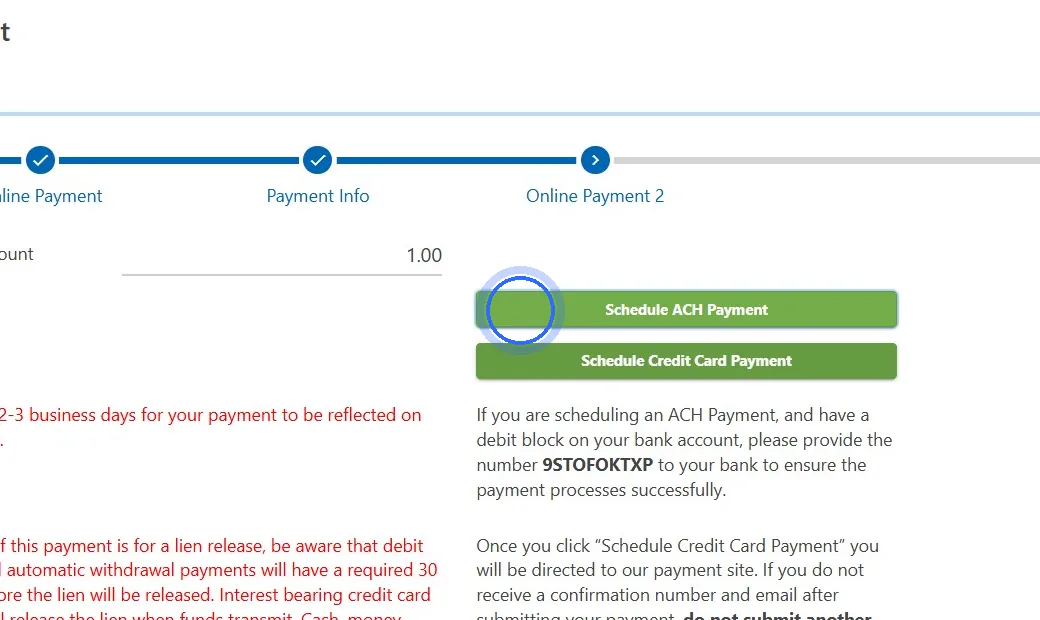
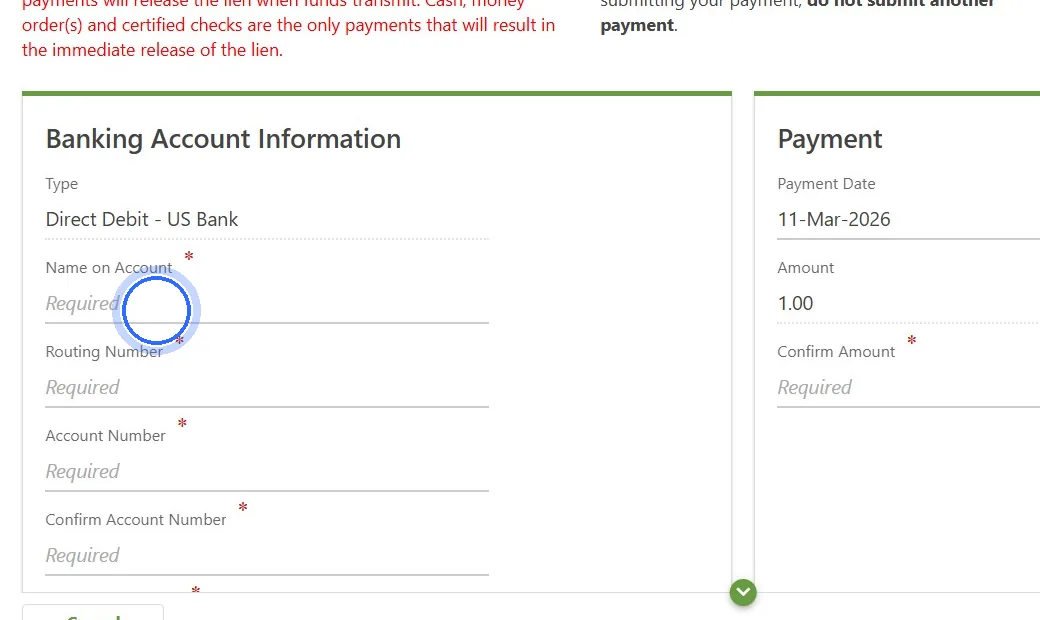
- Enter the payment details, follow the prompts, and click Submit.
- Save or print the confirmation page and send it to us.
Quarterly estimated tax paymentDue April 15, June 15, September 15, January 15
- Go to OkTAP (Oklahoma Taxpayer Access Point). You do not need to log in.
- Under I Want To, click Make a Payment. If a second screen appears, click Make a Payment again.
- Enter your name, phone number, and email address.
- When asked if you are using a coupon, select No, then click Next.
- Account Type: 03. Individual Income Tax. ID Type: Social Security Number, and enter the SSN of the person listed first on your return.
- Payment Type: Quarterly Estimated Payment.
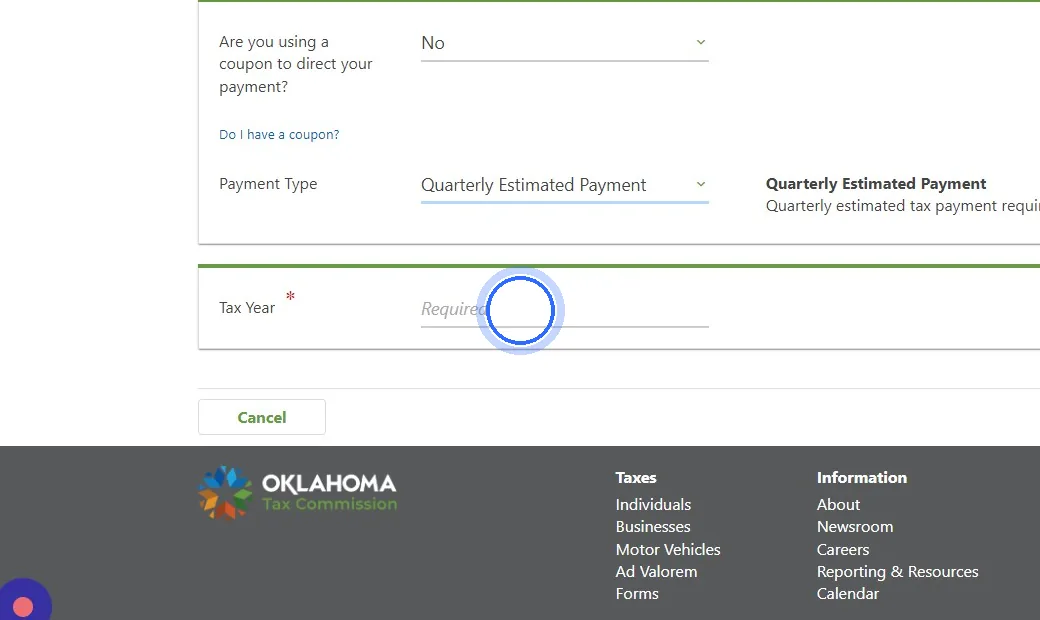
- Tax Year: enter the year the estimate is for. For 2026 estimates, type 2026, including the January 15, 2027 payment, which is the last installment for 2026. Click Next.
- Enter the Payment Amount.
- Choose Schedule ACH Payment (from your bank account) or Schedule Credit Card Payment (the card processor charges a fee).
- Enter the payment details, follow the prompts, and click Submit.
- Save or print the confirmation page and send it to us.
Extension paymentPaying by the April deadline when you're extending the return
- Go to OkTAP (Oklahoma Taxpayer Access Point). You do not need to log in.
- Under I Want To, click Make a Payment. If a second screen appears, click Make a Payment again.
- Enter your name, phone number, and email address.
- When asked if you are using a coupon, select No, then click Next.
- Account Type: 03. Individual Income Tax. ID Type: Social Security Number, and enter the SSN of the person listed first on your return.
- Payment Type: Extension Return Payment.
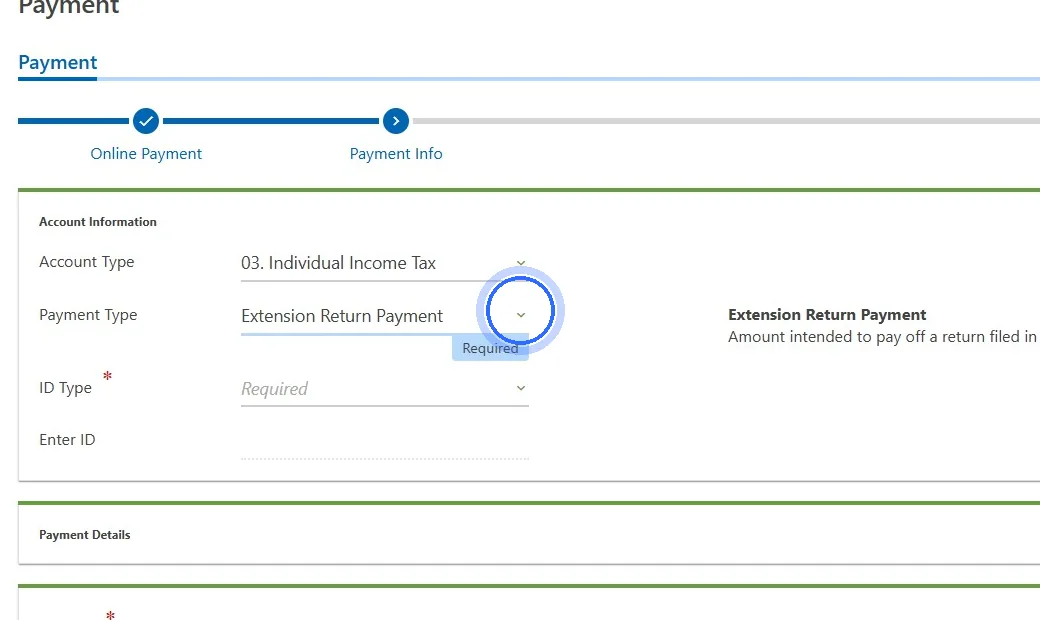
- Tax Year: enter the year being extended. Click Next.
- Enter the Payment Amount.
- Choose Schedule ACH Payment (from your bank account) or Schedule Credit Card Payment (the card processor charges a fee).
- Enter the payment details, follow the prompts, and click Submit.
- Save or print the confirmation page and send it to us.
An Oklahoma extension gives you more time to file, not to pay. Pay at least 90% of the tax by the original due date to avoid the late-payment penalty.
Oklahoma business payments (OkTAP)
For corporations, and for S corporations and partnerships that made the PTE election. No login needed.
Corporate balance dueOklahoma Form 512, tax owed with the return
- Go to OkTAP (Oklahoma Taxpayer Access Point). You do not need to log in.
- Under I Want To, click Make a Payment. If a second screen appears, click Make a Payment again.
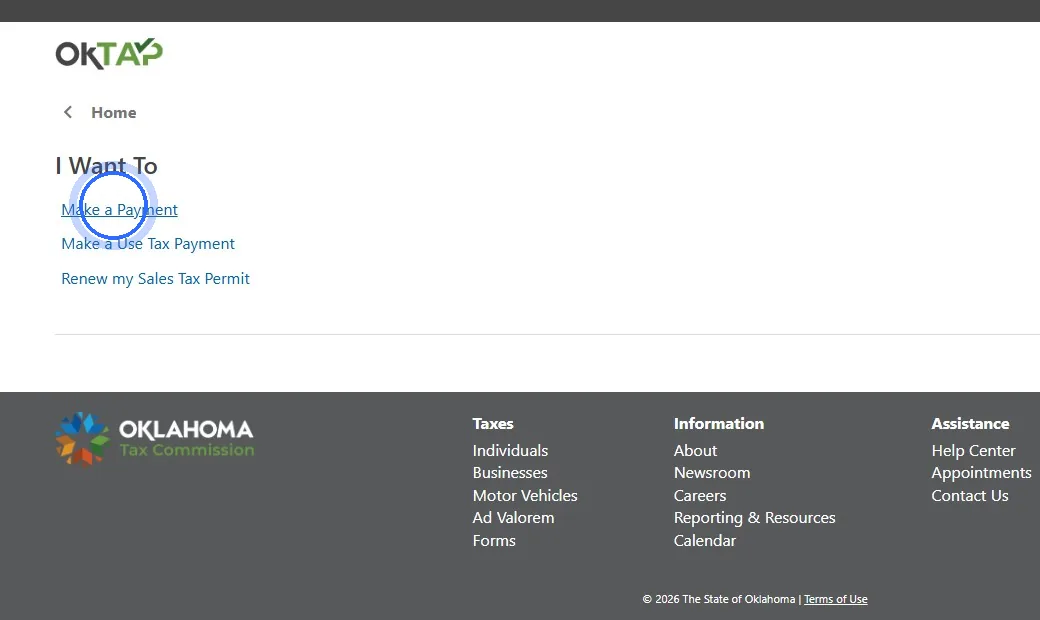
- Enter your name, phone number, and email address.
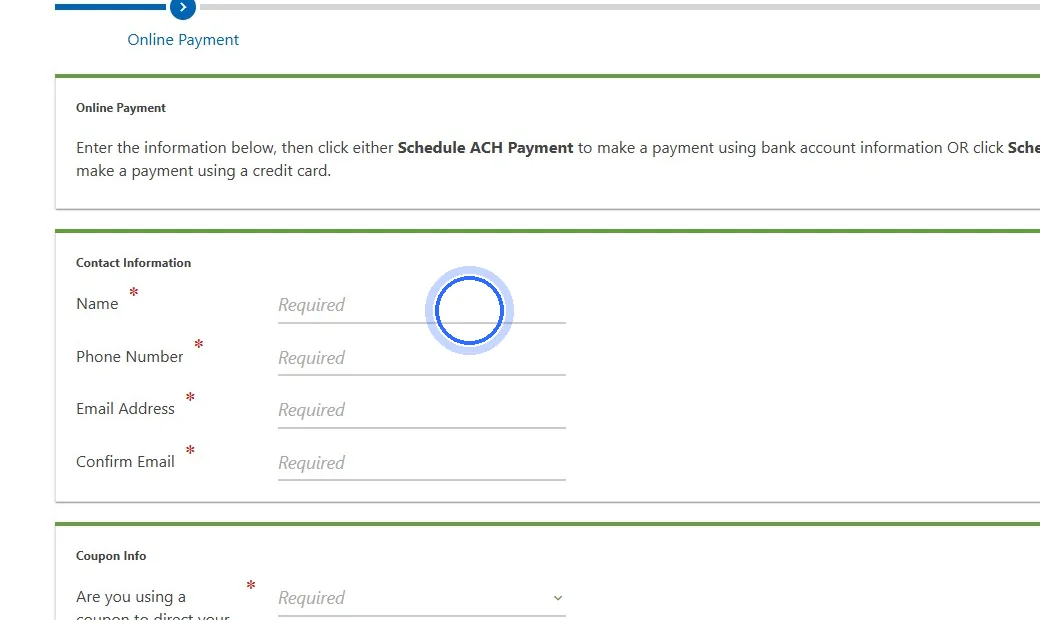
- When asked if you are using a coupon, select No, then click Next.
- Account Type: 19. Corporate Income Tax. ID Type: Federal Employer ID, and enter the business's FEIN.
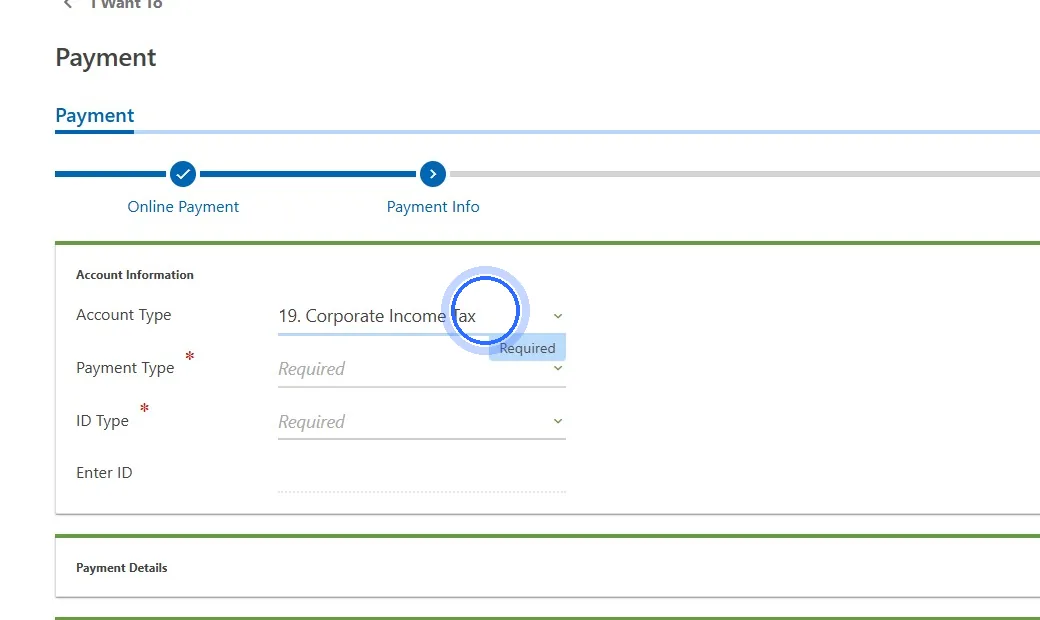
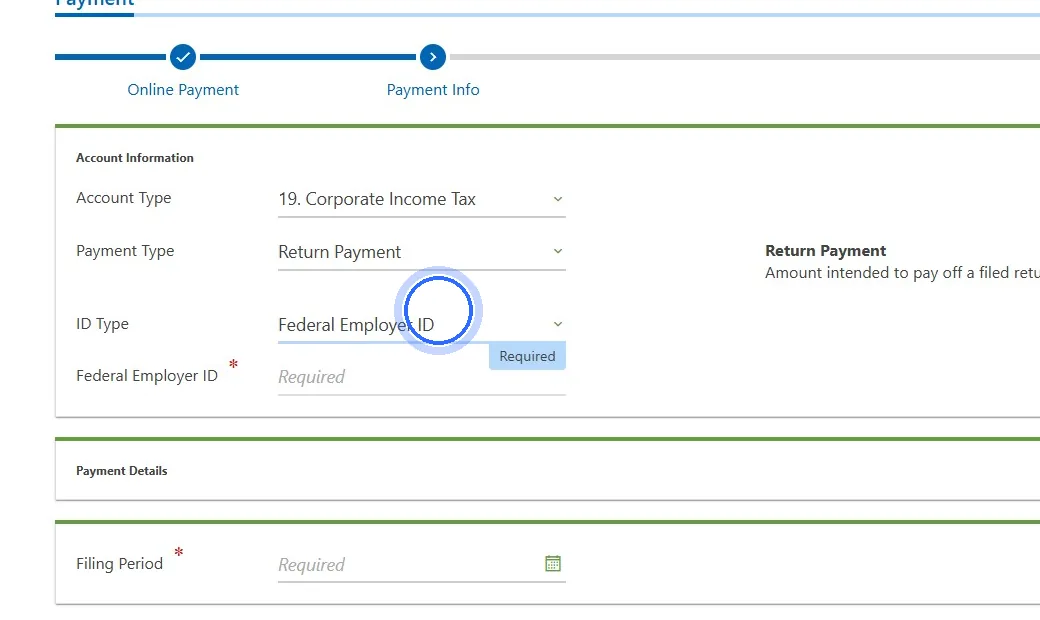
- Payment Type: Return Payment.
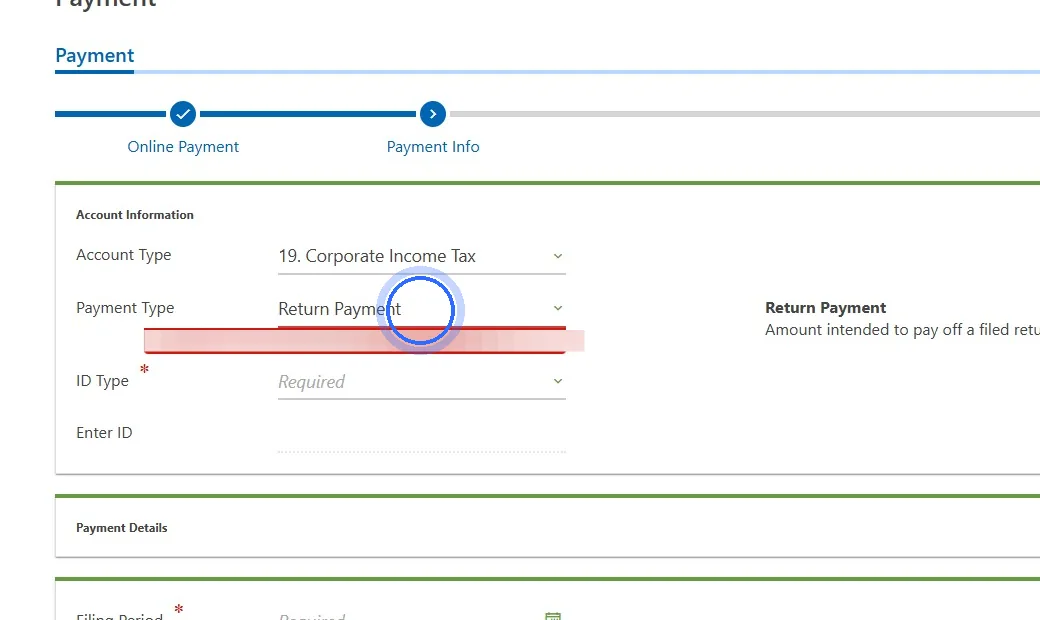
- Filing Period: type the last day of the tax year this payment is for, such as 12/31/2025 for a 2025 return. Click Next.
- Enter the Payment Amount.
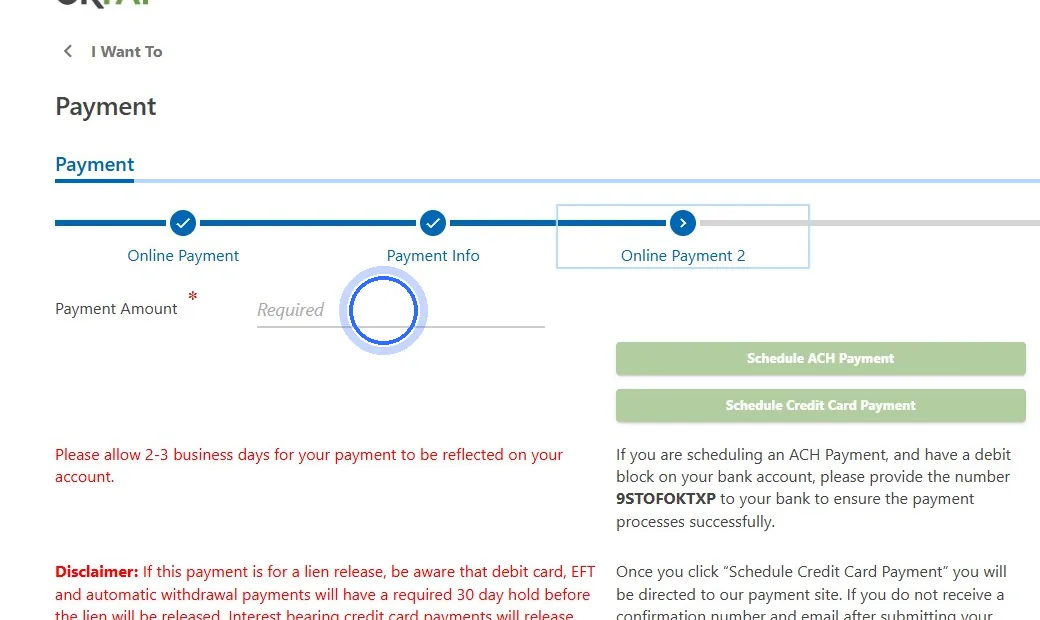
- Choose Schedule ACH Payment (from your bank account) or Schedule Credit Card Payment (the card processor charges a fee).
- Enter the payment details, follow the prompts, and click Submit.
- Save or print the confirmation page and send it to us.
Corporate estimated tax paymentQuarterly estimates for the current year
- Go to OkTAP (Oklahoma Taxpayer Access Point). You do not need to log in.
- Under I Want To, click Make a Payment. If a second screen appears, click Make a Payment again.
- Enter your name, phone number, and email address.
- When asked if you are using a coupon, select No, then click Next.
- Account Type: 19. Corporate Income Tax. ID Type: Federal Employer ID, and enter the business's FEIN.
- Payment Type: Quarterly Estimated Payment.
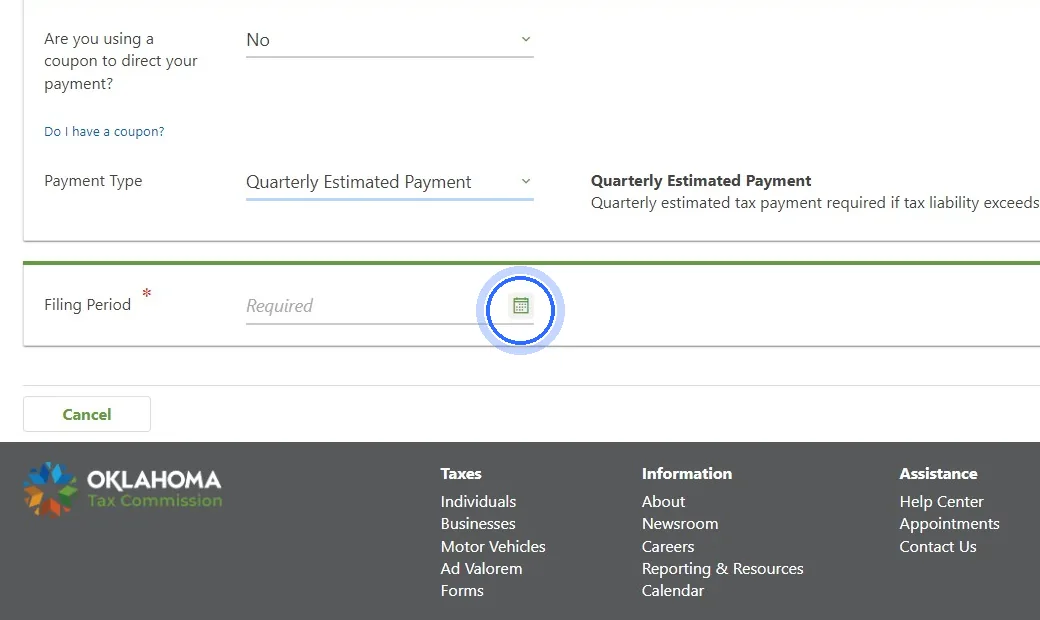
- Filing Period: type the last day of the year the estimate is for, such as 12/31/2026. Click Next.
- Enter the Payment Amount.
- Choose Schedule ACH Payment (from your bank account) or Schedule Credit Card Payment (the card processor charges a fee).
- Enter the payment details, follow the prompts, and click Submit.
- Save or print the confirmation page and send it to us.
Pass-through entity (PTE) tax paymentS corporations and partnerships that made the Oklahoma PTE election
- Go to OkTAP (Oklahoma Taxpayer Access Point). You do not need to log in.
- Under I Want To, click Make a Payment. If a second screen appears, click Make a Payment again.
- Enter your name, phone number, and email address.
- When asked if you are using a coupon, select No, then click Next.
- Account Type: 14. Pass-through Tax – Withholding. Payment Type: Return Payment for tax owed with a filed return, or Quarterly Estimated Payment for estimates.
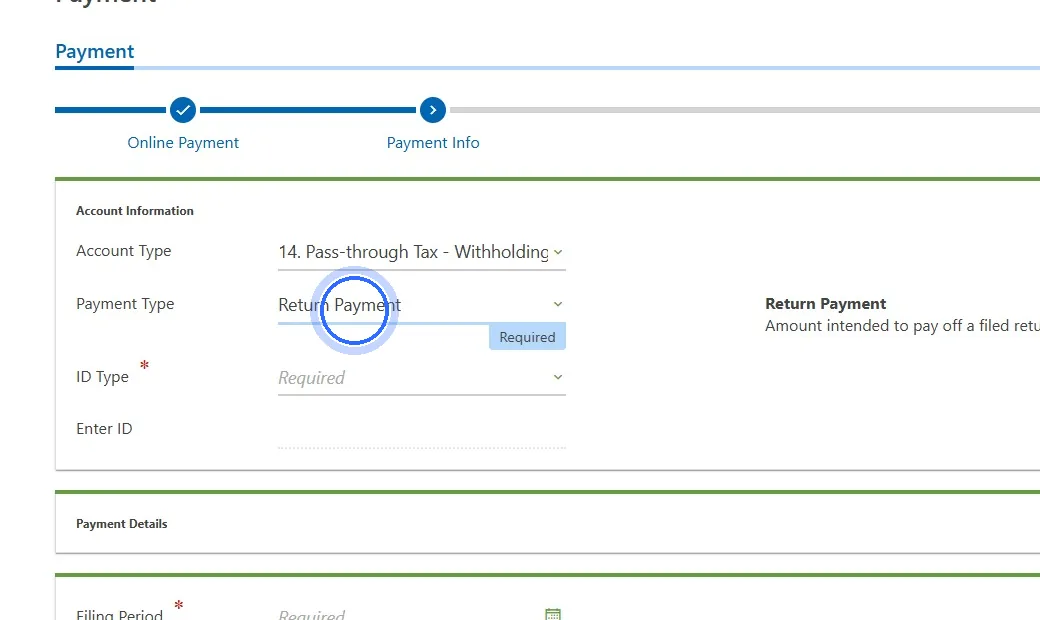
- ID Type: Federal Employer ID, and enter the business's FEIN.
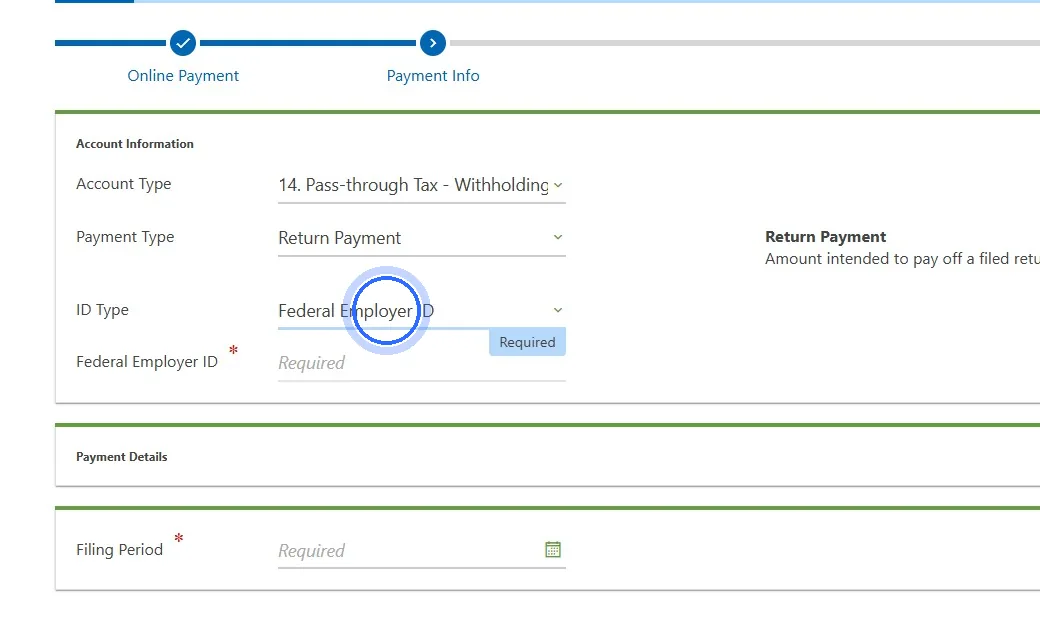
- Filing Period: type the last day of the tax year the payment is for, such as 12/31/2025 for a 2025 return or 12/31/2026 for 2026 estimates. Click Next.
- Enter the Payment Amount.
- Choose Schedule ACH Payment (from your bank account) or Schedule Credit Card Payment (the card processor charges a fee).
- Enter the payment details, follow the prompts, and click Submit.
- Save or print the confirmation page and send it to us.
This is only for businesses that made Oklahoma's pass-through entity election. Not sure whether yours did? Call or email us before you pay.